
What people see when you share a calendar view
Updated 4 October 2026
Someone you share a calendar view with sees the calendars you put in that view, as a read-only calendar they open in their browser. They cannot add, change or delete anything. What they see inside it is up to you: you can show every event in full, show only that you are busy, or hide private events altogether.
Everything below is set on the Calendar Views page, per view. A view is simply a named set of your calendars, and you can build as many as you like on any plan. Sharing one with another person starts at the Basic plan.
What a viewer can do
A viewer opens the link and sees a calendar page headed with your name, for example "Alex's calendar". They can switch between month, week and day, move through dates, and change the time zone the times are shown in, with a "Back to theirs" button to return to yours. If you have shared more than one view with them, an Other calendars button takes them to the others.
They cannot create, edit or delete events, and they cannot change your calendar colors. There is no way for them to add anything to your calendar. A viewer also does not need a GetCalendario account, and having a link does not give them any part of the app beyond the calendar you shared.
What you decide
Open Edit on a view. Four choices shape what people see:
- Which calendars. Either "All calendars, including ones I connect later" or "Just these", where you tick individual calendars. Choosing only some calendars needs the Basic plan or above.
- Detail. "Full detail", "Busy only" or "Free/busy only".
- Private events. "Shown in full", "Shown as busy" or "Hidden". Choosing anything other than "Shown in full" needs Basic or above.
- Date range. "Days back" and "Days ahead". Leave a box blank for no limit.
"Busy only", "Free/busy only" and the date range need the Premium plan or above. The Edit panel says so beside the heading: "Busy-only, free/busy and date windows need Premium".
What each detail level shows
Full detail shows events as they are on your calendar.
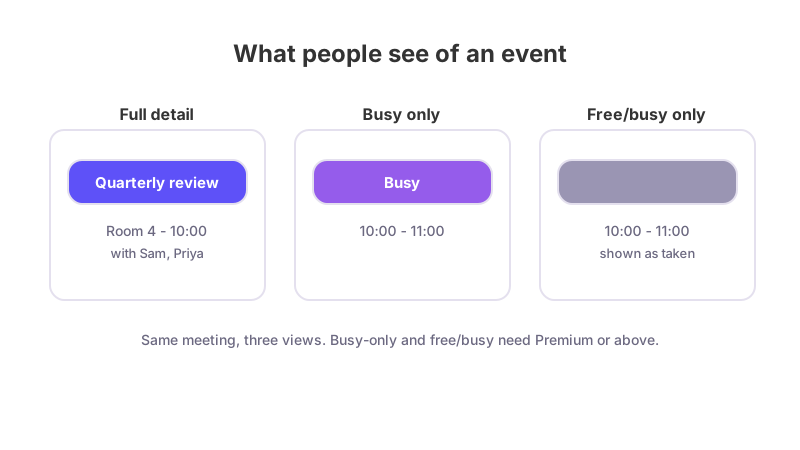
Busy only keeps each event on its real time slot but replaces the title with "Busy". The description, location, meeting link, attendees and organizer are removed.
Free/busy only goes one step further. Events are drawn in the same gray, so a viewer cannot tell your calendars apart by color, and they are not marked as recurring or all-day. It shows when you are taken and nothing about why.
How private events are handled
An event counts as private when it is marked private on its calendar. With Shown as busy, those events appear as "Busy" even if everything else is shown in full. With Hidden, they do not appear at all. With Shown in full, they are treated like any other event.
The date range
With a date range set, events outside it are left out, and an event that runs past the edge is cut off at the edge. The range counts from today in your time zone.
Check it before you send it
When you click Share, the panel starts with a sentence in your own settings, for example "They will see: all your calendars, busy only, private events hidden." On the calendar page, the preview toggle labeled "As a viewer sees it" shows you the view the way a viewer will.
If you change a view later, everyone who follows that view sees the change. People you have set up individually keep what they have.
What this does not do
A shared view is not a sync connection and copies nothing onto anyone else's calendar. How strictly a viewer has to prove who they are is a separate setting, covered in Email or passkey: choosing how strict a shared view is. To send someone a link for the first time, see How to share your availability by link, and to end someone's access, see How to stop sharing or reset access.
How many people you can share with depends on your plan. See GetCalendario plans compared.