
Email or passkey: choosing how strict a shared view is
Updated 4 October 2026
When you share a calendar view, you decide how the people holding it prove who they are. There are four choices, set per view. They run from "a code emailed to them" up to "a passkey on their device and an emailed code, every time". The strongest two need the Premium plan or above. The other two work on every plan that can share.
You choose on the Calendar Views page, under How they get in, either when you click Share or in Edit. Everyone who holds that view gets in the way you pick.
The four choices
They are listed best first.
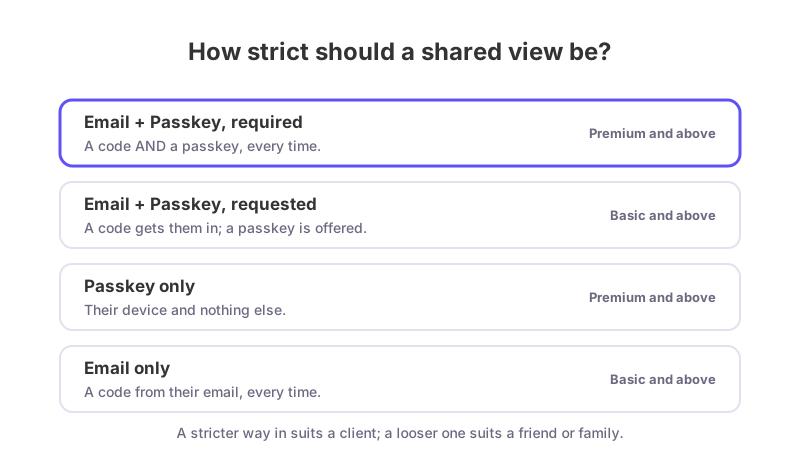
Email + Passkey, required (marked "recommended"). "A code from their email AND a passkey on their device, every time. The only genuine two-factor choice here." The person must prove both their mailbox and their device on every visit. Needs Premium or above.
Email + Passkey, requested. "A code gets them in. They are offered a passkey, and once they set one up it replaces the code." This is what a new view starts with, and it works on every plan that can share. Either a code or a passkey is enough.
Passkey only. "Their device and nothing else. Fastest for them, and if they lose it only you can let them back in." Needs Premium or above.
Email only. "A code from their email, every time. Anyone who can read that mailbox can open the calendar." The person is never offered a passkey.
The page opens on whatever the view already uses. "Recommended" is a badge, not a pre-selected option, so sending an invite never changes a setting for people who already hold the view without you choosing it.
What the person you share with is told
The invitation says what to expect before they meet it. For example, with Email only: "The link below opens the calendar on its own for 15 minutes. After that we email you a code." With Email + Passkey, required: "You will set up a passkey on your device, and we will email you a code each time you open the calendar."
An emailed code is six digits, lasts 10 minutes, and allows five wrong attempts before a new one must be requested.
Which plans can require a passkey
Requiring a passkey, meaning the first and third choices, is included on the Trial, Premium, Pro and Team plans. Basic can share a calendar view but cannot require a passkey. On the picker, the locked options say "Needs Premium. Anyone you share with can set a passkey up themselves on any plan."
That last sentence matters: the person you share with can set up a passkey on any plan when the choice is "requested". Paying only unlocks your ability to insist on one.
If your plan changes to one that cannot require a passkey, the view drops to "Email + Passkey, requested". Nobody is removed and nobody who already set up a passkey loses it.
Setting up a passkey has a 24-hour window
When a view requires a passkey, a person can only set one up during a 24-hour window. The window opens when you send the invite, when you switch the view to a mode that requires a passkey, or when you reset their access. If you tighten a view that people already hold, GetCalendario emails the people who still need to set one up. The window exists because otherwise anyone who could read their mailbox could add their own device and hold both factors.
Which should I choose?
- Choose Email + Passkey, required for anything sensitive, if your plan allows it.
- Choose Email + Passkey, requested if you want something easy that gets stronger as people set up passkeys.
- Choose Passkey only for a small group you trust to keep their devices. If one is lost, only you can let them back in. See How to stop sharing or reset access.
- Choose Email only when ease matters more than strength.
None of the four changes what a viewer sees once inside. That is a separate set of choices, described in What people see when you share a calendar view.