
Share a calendar with a client without giving them a login
Updated 4 October 2026
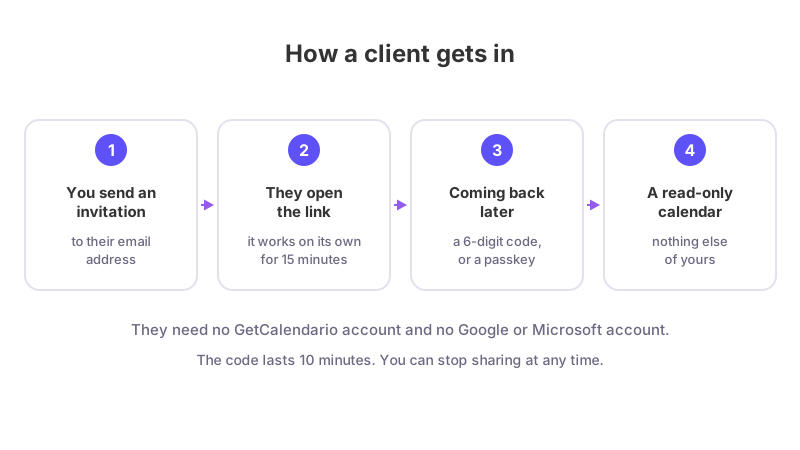
You can let a client see your calendar without giving them an account, a password or access to your Google or Microsoft login. You send an invitation to their email address. They open the link, prove they own that address with a one-time code (or a passkey, if they set one up), and see a read-only calendar. Nothing else of yours is reachable from it.
This needs the Basic plan or above on your side. Your client needs nothing: no GetCalendario account, and no Google or Microsoft account either.
Step 1: Decide what the client should see
On Calendar Views, make a view for them, for example "Client availability", holding only the calendars you want shown. Then open Edit and choose the detail. For a client who only needs to know when you are free, "Busy only" or "Free/busy only" shows your time as taken without saying why. Details are in What people see when you share a calendar view.
Choosing only some calendars and hiding private events needs Basic or above. Busy-only, free/busy and date windows need Premium or above.
Step 2: Send the invitation
- On the view, click Share.
- Type your client's email address. Click Add another to invite several people at once.
- Under How they get in, pick how strict it should be. For most clients, "Email + Passkey, requested" is a good start. See Email or passkey: choosing how strict a shared view is.
- Click Send.
The panel first shows "They will see:" followed by a plain-language summary of your settings. Read it before you send. GetCalendario emails your client a link, with the subject "[your name] shared a calendar with you on GetCalendario".
What your client does
Opening the link. The first page says "
Coming back later. After 15 minutes, or on a later visit, the page is headed "Secure Access". The client types the address you invited, clicks Send Code, then enters the six-digit code from their inbox and clicks Verify. The code lasts 10 minutes. If they have a passkey set up, they click Use a passkey instead and confirm with their fingerprint, face or device PIN.
Setting up a passkey. Once inside, a banner says "Skip the code next time. Set up a passkey and this calendar opens with your fingerprint, face or device PIN." It is optional unless you chose a way in that requires one.
Several calendars. If the same address has been shared with them by more than one person, they pick from a list with the label "Select the calendar you want to view", then click Continue.
What the client can and cannot do
They see a read-only calendar with your name on it, and can move between dates and change the time zone shown. They cannot add, change or delete anything, and they do not see the rest of your account. There is a Sign out button on the calendar page.
Keeping control
- Stop ends one client's access to a view straight away. See How to stop sharing or reset access.
- If an invitation is lost, use Share again with the same address. A new link is not sent if one went out in the last five minutes.
- A client counts as one person against your plan's limit however many views you share with them. Basic includes 5 people, Premium 25, and Pro and Team do not limit it.
If you want someone to bring their own calendar into your syncs, rather than just look at yours, that is a different feature. See Understanding primaries and secondaries. For a quick overview of sharing, see How to share your availability by link.