
What a secondary account is and how to add one
Updated 9 October 2026
A secondary account is another person's calendar login that you add to your own GetCalendario account. They sign in with their own email and password and connect their own calendars. You then build syncs between their calendars and yours. You never hold their password and never sign in as them.
People use it for an assistant and an executive, partners who want one shared picture of the week, or a colleague whose time you need to block out. You are the primary, the person who owns the subscription and builds the connections. They are the secondary.
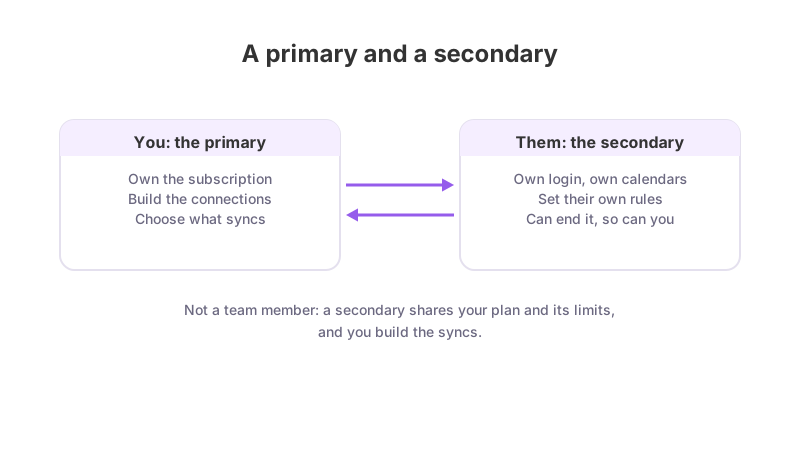
What a secondary can and cannot do
The secondary:
- Signs in with their own login and connects their own calendar accounts.
- Sets their own rules for what leaves their calendar, such as hiding the details of certain events while still blocking the time. You do not see or manage those rules from your own Sync Rules page. (If your plan has no room for secondary accounts, a plan change switches their rules off.)
- Is on your plan for everything you build together, and does not pay for it. (If they already had their own account, that account keeps its own plan.)
- Can end the arrangement, as can you.
The secondary cannot build or edit connections, choose which calendars sync, stop an event syncing outright, invite other people, manage billing, or create and share calendar views. Those stay with you. The reasons are explained in Understanding primaries and secondaries.
A secondary is not a team member. A team gives each person their own syncs on one bill; secondaries share your plan and its limits, and you build the syncs. For the team option, see How to invite someone to your team.
How to add a secondary
- Open People & Team. If you also have a team, choose the Secondaries tab.
- Click Add secondary. A three-step window called "Add a secondary" opens.
- What this does explains the arrangement. Click Continue.
- Who to invite asks for Their name and Their email address. Both are required.
- Their invitation asks for a note, which goes in the email in your words and is required. Write for me drafts one you can edit, and Undo puts back what you had.
- Click Send invitation.
Nothing syncs until the person has accepted and connected a calendar.
What the other person sees
If they have no GetCalendario account, one is created for them. They get an email with your note and a one-time sign-in link, and they set up two-factor sign-in and choose their own password.
If they already have an account, it stays theirs, with their own plan and connections untouched. They get an invitation page saying "
Keeping track
Each person on your list has a label: Invited (an existing account that has not yet accepted), Invite sent (a new account whose owner has not yet verified their email) or Active. The row also shows how many calendar accounts they have connected and how many of your syncs use them. The three-dot menu has Send again (Reinvite for people already active) and Withdraw invitation or Remove.
You can send to the same address once every 10 minutes and three times a day.
When you remove someone, the window says how many syncs use their calendar and that they will stop. Events already copied across stay where they are, their own GetCalendario account stays as it is, and they are told by email. Removing a secondary ends your access to their calendar, not their account.
How many secondaries your plan includes
The Add secondary button shows "N of M used". The numbers on the plans are:
| Plan | Secondary accounts |
|---|---|
| Free | 0 |
| Basic | 1 |
| Premium | 4 |
| Pro | Unlimited |
On a team's plan, secondaries are unlimited too, and they never take a seat. | Team | Unlimited | | 14-day trial | 4 |
At the limit, the page says what your plan includes and the button is switched off. Nobody is ever removed automatically to make room. See GetCalendario plans compared.
Rules to know
- A person can be a secondary for one primary at a time.
- You cannot invite your own address.
- Someone who already has their own account can be a secondary too, and keeps full control of their own account.
- If your team has switched secondaries off, invitations are refused and ones already sent cannot be accepted. See Team policies.