
Lock your backups with a passkey, recovery code or password
Updated 4 October 2026
A locked backup is encrypted before it leaves GetCalendario. With a passkey, a recovery code or a password you chose, only you hold the key. A generated zip password is the exception: we keep an encrypted copy so your browser can fetch it after a passkey sign-in. There are three ways to unlock one: a passkey, a recovery code, or a password. If you lose every way in, If you lose every way in that we do not hold, we cannot open your backups for you. That is the point of locking them, and it is worth reading the last section before you rely on it.
You choose locking on the Setup tab of Daily Backups, under Where your backups go: either Your storage, locked or Our servers, locked. See how Daily Backups work for all the choices.
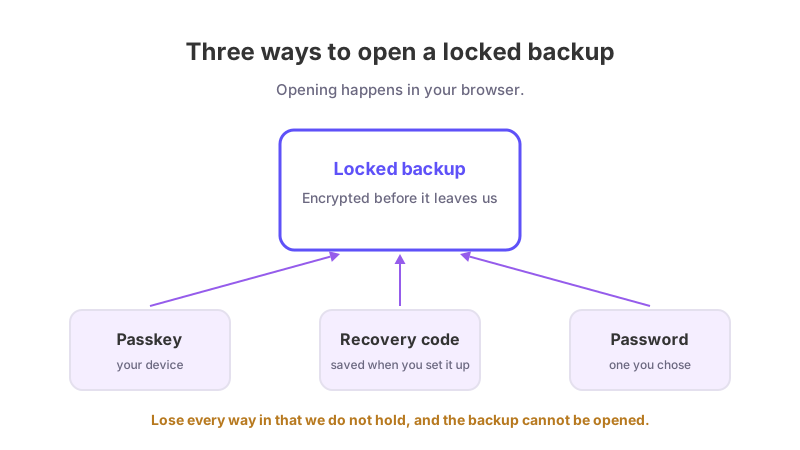
The three ways to unlock
A passkey. Choose Lock with my passkey. Your passkey becomes the key: it does the unlocking on your own device, and nothing we hold can open the backups. Not every passkey can do this. Passkeys saved in some apps sign you in fine but do not give the extra key that locking needs; the page tells you when that is the case and suggests adding one saved in, for example, Windows Hello, Google Password Manager or 1Password. To add one, see how to set up a passkey.
A recovery code. When you lock with a passkey you also get a recovery code, shown once. It is 24 letters and numbers in groups of four. When you type it back, capitals, spaces and dashes do not matter. It is your second way in if you lose every device your passkey is on. You hold one recovery code at a time: New recovery code makes a fresh one, and the earlier one no longer opens new backups.
A password. If you have no passkey that can lock backups, there are two versions:
- For Your storage, locked, choose Use a password I'll keep myself. We make a strong password and show it once. Each night's backup is a locked zip, which you open in 7-Zip on Windows or Keka on a Mac; the built-in unzip tools do not open these. Passwords are numbered (#1, #2 and so on), and each backup says which number it needs.
- For Our servers, locked, you choose your own password, at least 12 characters, labelled Use this password. At restore you type it as Your backup password.
Saving a code or password
A recovery code or generated password is shown once, with a Copy button. Before you can continue you tick two boxes: that you have saved it somewhere safe such as a password manager, and that you understand GetCalendario cannot show it to you again. It only counts from the moment you press I've saved it.
Adding, replacing and removing ways in
Once backups are locked, the Setup tab lists Ways to open your locked backups, each with a Remove button, plus Add a passkey and New recovery code. Zip passwords have their own list, with New zip password and Destroy old passwords.
- Adding a way in applies from that night. Removing one stops it being used for new backups straight away.
- A removed way in can still open older files until you next unlock one of them in your browser, which is when those files are re-locked to your current ways in.
- Removing the last way in means nights from then on fail, because nothing could open them. The page warns you before you confirm.
- These changes ask for a recent sign-in first.
What happens if you lose the key?
- Lost the passkey but have the recovery code: unlock with the recovery code, then add a new passkey.
- Lost the recovery code but still have the passkey: make a new recovery code.
- Lost every passkey and the recovery code: your locked backups cannot be opened. We do not hold the key and cannot make one. Future backups need a new way in set up first.
- Lost a generated zip password: the page cannot show it again. We keep an encrypted copy so that, after a passkey sign-in on the restore page, your browser can use it for you. If you have no passkey, treat a lost zip password as gone. Pressing Destroy old passwords removes those stored copies, and zips from those dates then open only with a copy you kept.
If you sign in with a passkey and have never chosen where backups go, we switch on Our servers, locked for you, locked to that passkey, and ask you to save a recovery code. Until you do, losing every passkey loses those backups.
Once you have a key, restoring a calendar is done on the Recover calendar tab.