
How to restore a calendar from a backup
Updated 4 October 2026
To get a calendar back, open Daily Backups, go to the Recover calendar tab, pick the calendar and the night you want, unlock the file if it is locked, and download an .ics calendar file. You then import that file into Google Calendar or Outlook yourself. GetCalendario never writes anything back into your calendar for you, so nothing changes until you import.
Each backup is the whole calendar as it stood that night, every event past and future, not just that day's events. Pick the last night from before things went wrong. Daily Backups is on paid plans and during the 14-day trial; if you have not set it up, see how Daily Backups work.
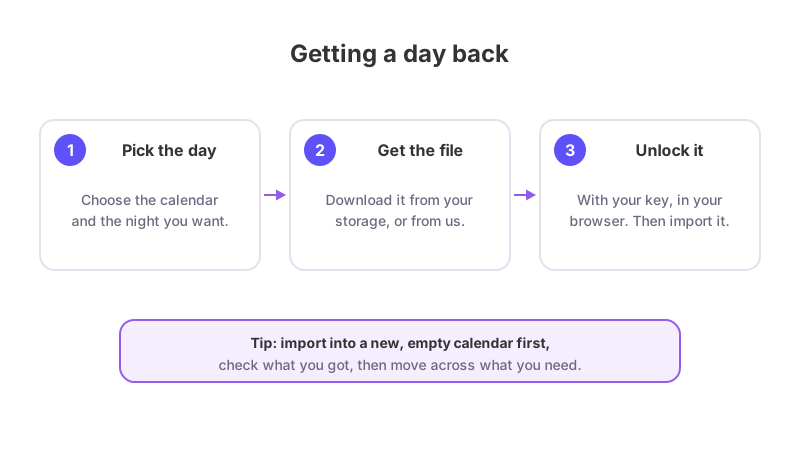
Step by step
- Which calendar, and which backup? Your calendars are listed under the account they belong to, each with a count of how many backups it has. Pick one, then pick a night from the list. The list covers the last 30 days. A night with no backup is greyed out with the reason, for example that the sign-in to the calendar had expired that night, or that your storage was full.
- Get the backup file. This step appears only when the backups went to your own storage. For Dropbox you get a link to open the file there. For Amazon S3 or Azure you get the exact path, with a Copy path button and a link to the storage console, because GetCalendario's key can only add files and cannot fetch them. Download the file to your device. If a backup is kept on our servers, this step is skipped and the file is fetched for you.
- Add the file. Use Add the downloaded file. The page checks that it is a GetCalendario backup, for the calendar and night you picked, before anything is unlocked. If you added another night's file it tells you which night it is and lets you continue with it or pick again.
- Unlock it. Locked files are unlocked in your browser. You are offered only the ways that fit that file: Unlock with my passkey, Use my recovery code instead, or Use my backup password. A locked zip asks for its numbered password. Backups that were never locked skip this step. See how locking works.
- What to take back. Choose The whole calendar, or Only these dates and enter a From and a To date. The second is useful when you only deleted a week.
- Export the calendar file. Press Download .ics. There is also a small link to the raw copy your calendar provider sent, as a
.jsonfile, which is only for your records. - Put it back. The page shows import steps for your calendar's provider. In Google Calendar, open Settings, then Import & export, choose the file, pick the calendar and press Import. In Outlook on the web, open Calendar, then Add calendar, then Upload from file.
Is my backup uploaded anywhere when I open it?
For a locked file, no. The file and its events never reach us. For a zip locked with a generated password, your browser fetches that password from us after a passkey sign-in.: opening, choosing dates and building the .ics all happen on your device. Files that were not locked and are stored on our servers are turned into an .ics by our servers instead, since there is nothing to keep secret from us.
What to know
- Import into a new, empty calendar first. The page says this itself: check what you got, then move across what you need. Import into a new, empty calendar first to check what you got, then move across what you need.
- Opening a locked file needs the key. If you have lost every passkey, recovery code and password for a locked backup, it cannot be opened. A zip locked with a generated password can still be unlocked after a passkey sign-in.
- After 30 days, backups on our servers are gone. In your own storage they stay until you remove them.