
How to connect an Apple (iCloud) calendar with an app-specific password
Updated 9 October 2026
GetCalendario reads Apple calendars. You can copy events from an Apple (iCloud) calendar to a Google or Microsoft calendar. It can't write to Apple calendars yet, so an Apple calendar can be a source but not a destination.
Apple doesn't offer a "Sign in with Apple" screen for calendar apps. Instead, you make an app-specific password: a password just for GetCalendario that works only for your calendars and that you can revoke at any time without changing your Apple Account password.
Before you start
- Two-factor authentication must be on for your Apple Account. Apple requires it before it lets you make app-specific passwords. Most Apple Accounts already have it.
- Have your Apple Account email ready, the one you sign in to Apple with.
Steps
-
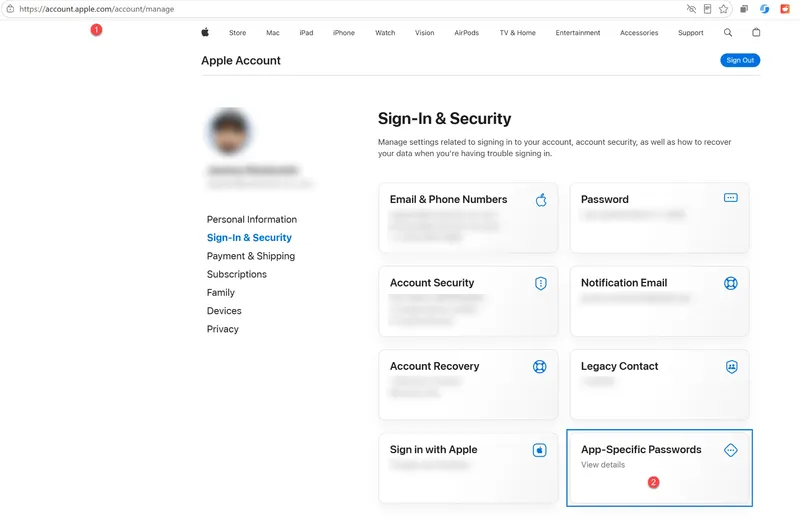
Go to account.apple.com/account/manage and sign in.
-
Under Sign-In & Security, choose App-Specific Passwords (it says "View details").
-
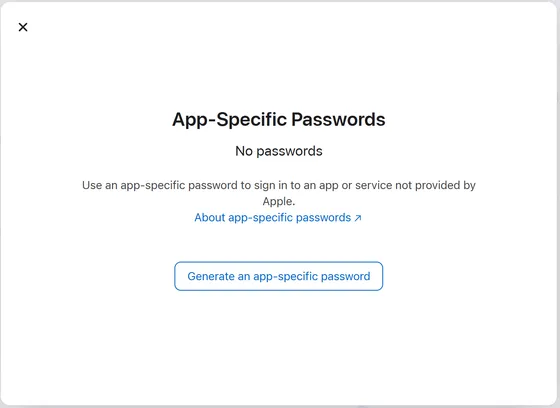
Choose Generate an app-specific password.
-
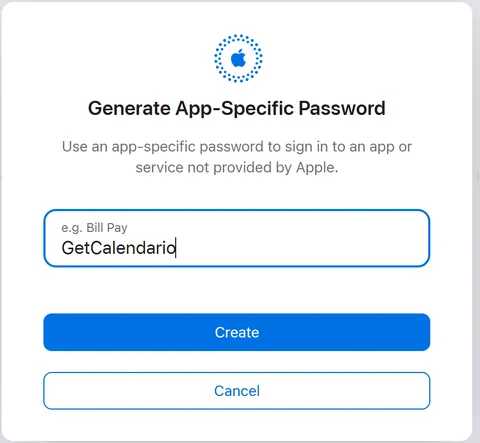
Give it a name you'll recognize, such as GetCalendario, and choose Create.
-
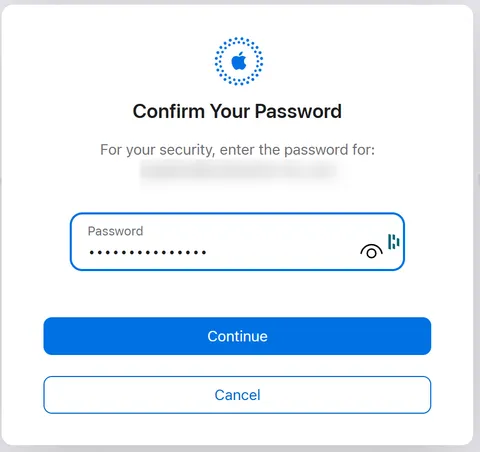
Apple asks you to confirm your Apple Account password. Enter it and choose Continue.
-
Apple shows the new password. It looks like
abcd-efgh-ijkl-mnopand is case-sensitive. Copy it, paste it into the password field on GetCalendario's Connect Apple Calendar page, then choose Done on Apple's side.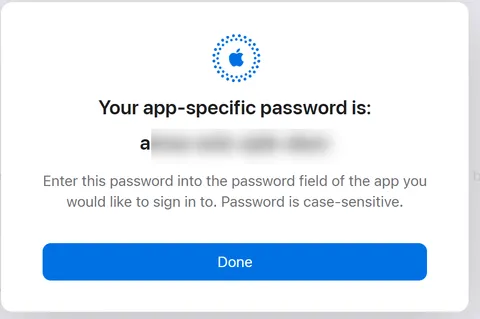
On the Connect Apple Calendar page, enter your Apple Account email (not the name you gave the password) and the password you copied, then choose Connect. A Success! screen says how many calendars we found. Choose OK to go back to Home, where they're listed under the account.
To open that page, choose Add account on Home and pick Apple.
If Apple doesn't accept it
- Check you used your Apple Account email, not the password's name.
- Paste the password exactly as Apple showed it, with the dashes. It is case-sensitive.
- Apple shows each password only once. If you lost it, make a new one and use that.
Turning access off
You can revoke the password anytime: go back to App-Specific Passwords at account.apple.com and remove it. After that GetCalendario can no longer read the account, and its connections pause until you connect it again with a new password.
Apple calendars are included with paid plans.